

Creating an Environment Variable
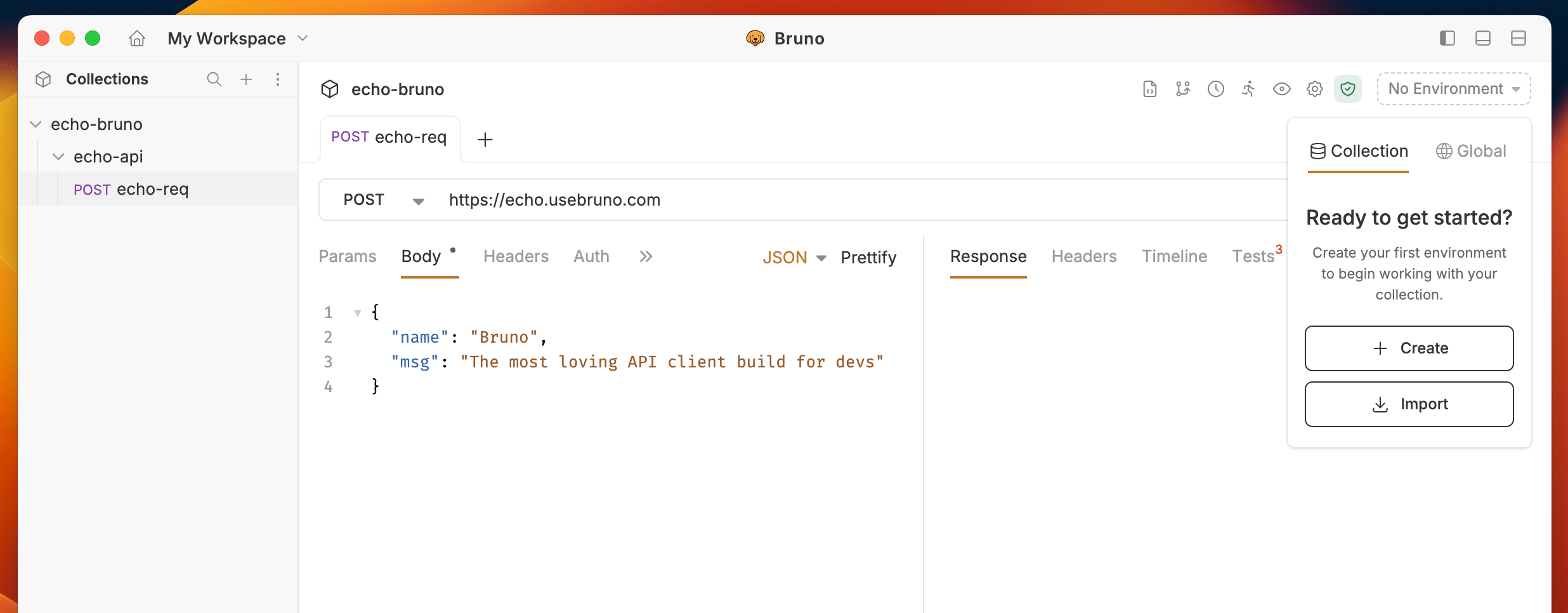
- Go to environments (top right) and press No environment.
- If there are no environments, you will be prompted to create one.
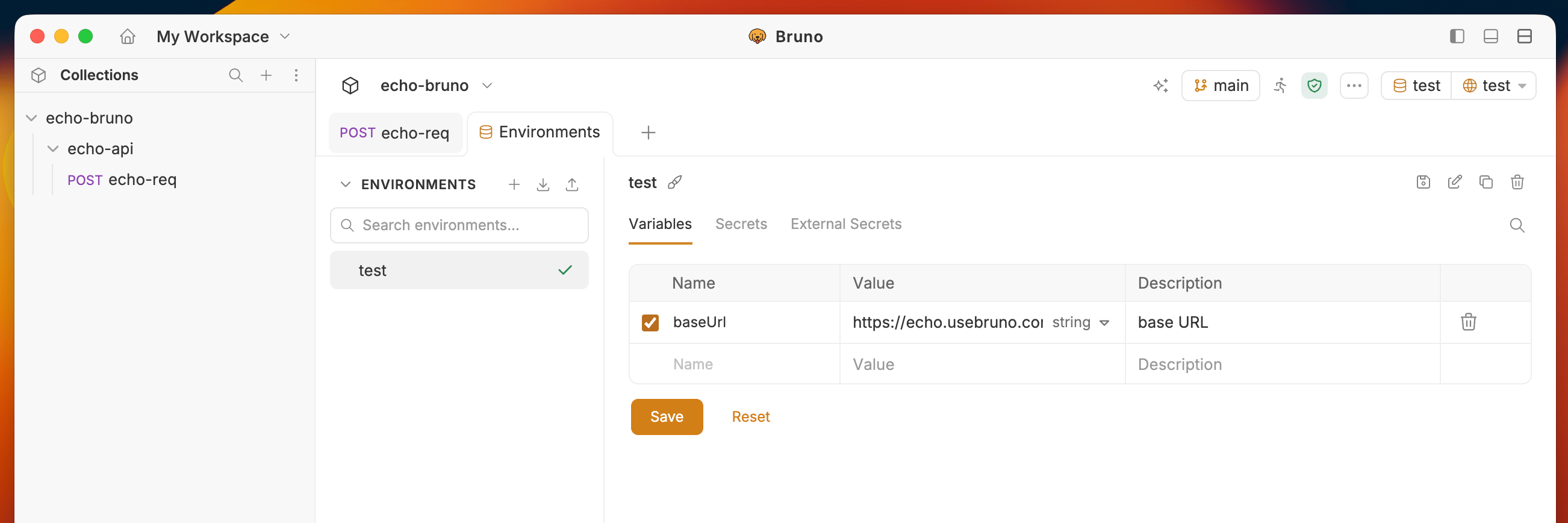
- Add your variable name, value, and an optional description for what the variable represents.
- Save your changes.
Using an Environment Variable
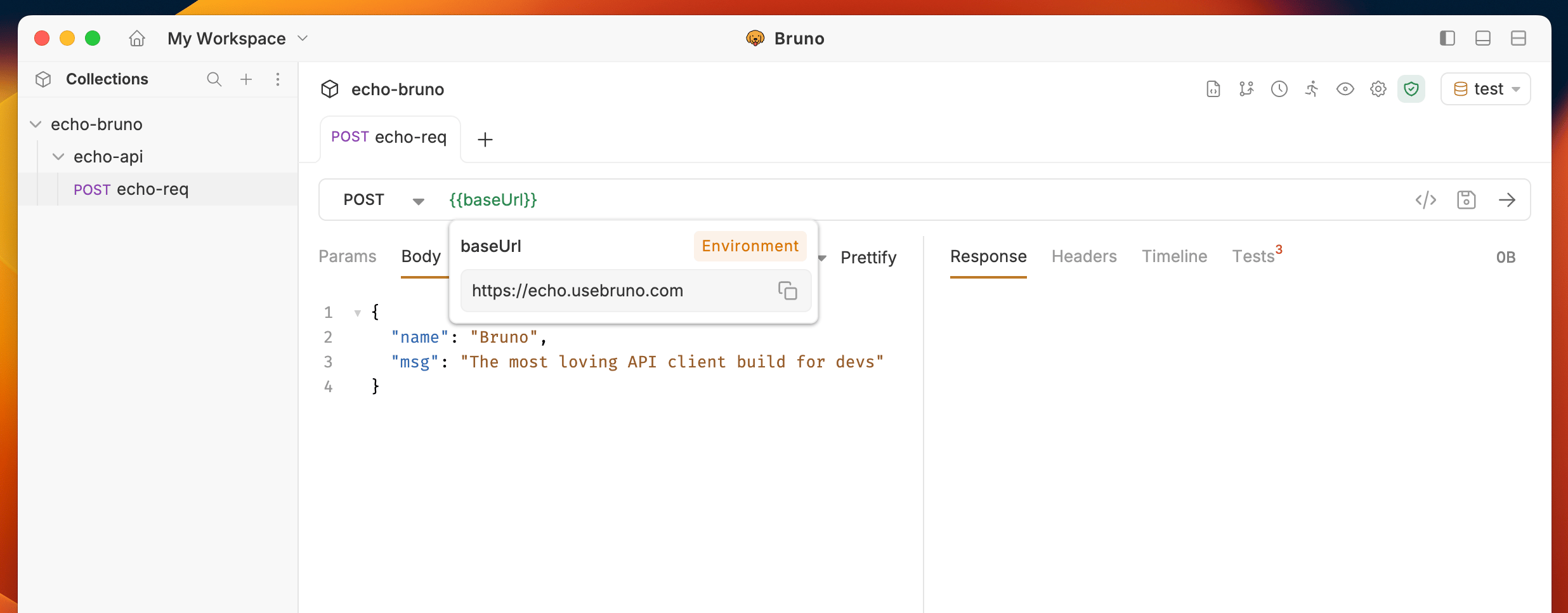
Just like other variables you can use the{{varName}} syntax to use an environment variable in a request. On the top-right, you can see which environment you are currently using and select a different one.
Searching environment variables
When working with a large number of environment variables, you can use the search feature to quickly find specific variables.- Open your environment settings.
- Click the search icon in the environment details panel.
- Type your query to filter variables by name or value.
The search feature is also available for global environment variables.
Default environment
You can set a default environment for a collection so teammates and new sessions start with the right environment selected, without picking it manually every time. The default is stored in the collection > Presets and travels with the collection when you share, export, or import it.Set a default environment
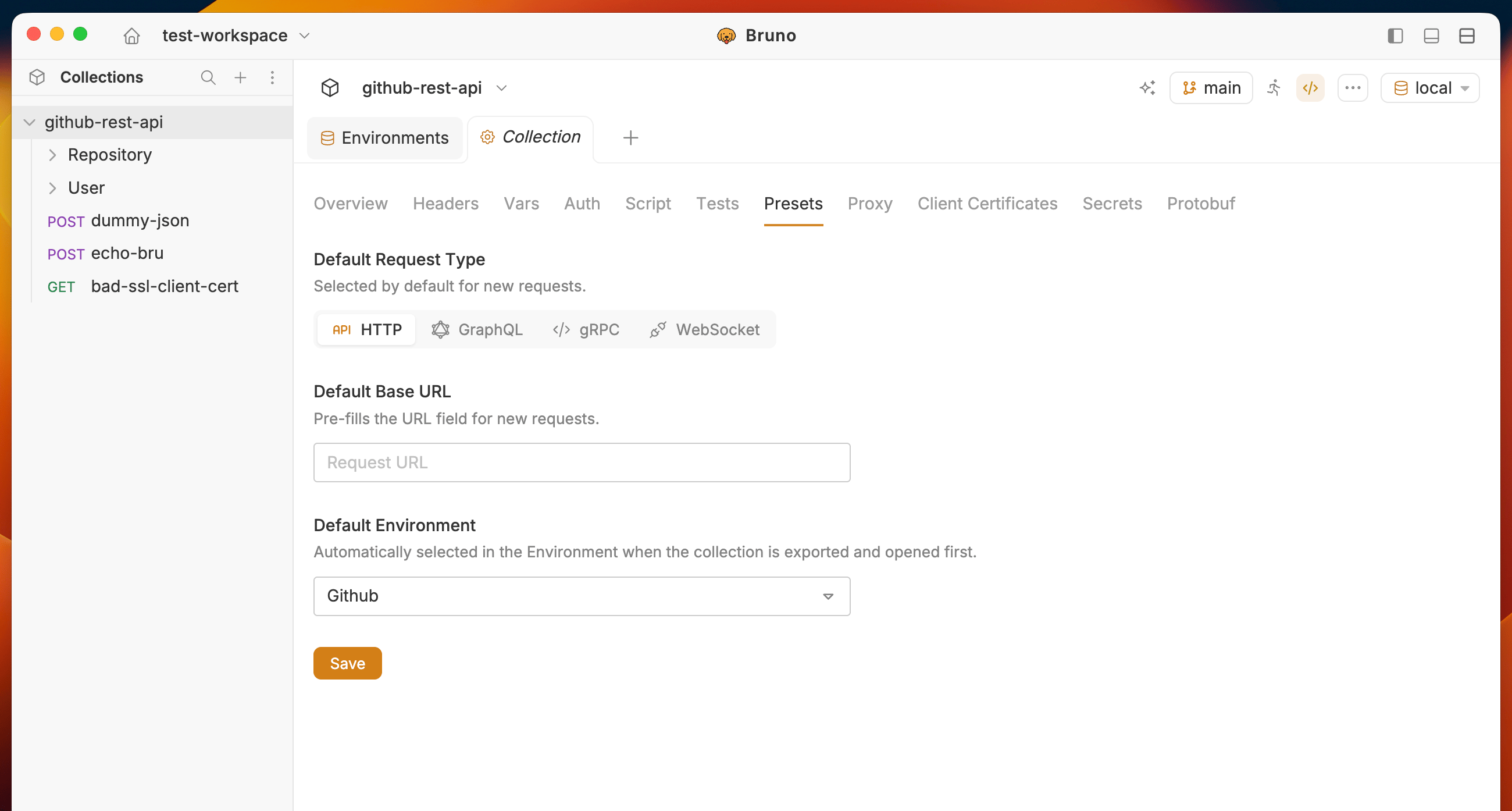
- Go to Collection > Presets tab.
- Select the collection environment you want as the default
- Click Save button.
How the default is applied
The default environment is shareable with the collection. Setting it updates collection config (
bruno.json or OpenCollection YAML), not only your local UI state.Persistence and export
The default environment is persisted in the collection configuration and included when you export the collection:- Bruno native - stored in
bruno.json - OpenCollection YAML - stored in
opencollection.yml
Example config
After you set Local as the default, the collection config includes that choice. Exact field placement depends on format:- Bru Collections
- OpenCollection YAML
bruno.json
Environment inheritance
An environment can inherit variables from another environment in the same scope and override only the names it redefines. Use this to define shared values (host, common headers, feature flags) in a base environment, then layer environment-specific overrides on top. Inheritance is supported for collection environments and workspace (global) environments, in both.bru and .yml, and applies in the app and in Bruno CLI.
Set a parent environment
- Open the environment you want to extend from another.
- In the environment editor, choose a parent environment from the same scope.
- Save.
Bruno warns you when a parent environment is missing or excluded from the collection so the reference is not silently dropped. The unresolved parent name is preserved on save, so re-adding the parent restores inheritance.
Resolution and precedence
- Variables defined in the current environment override same-named variables inherited from a parent.
- Inheritance resolves at request time, so requests, scripts, collection runs, code generation, and CLI runs all see the merged variables.
- A single parent is declared as one name; multiple parents can be declared as a list (later entries take precedence over earlier ones).
- Secret values and unchanged inherited values are not rewritten to the child environment file on save.
Declaring extends in files
The parent reference is stored in the environment file so it travels through import, export, rename, and version control.
- BRU format (.bru)
- YAML format (.yml)
production.bru
/.Using the ./environment directory
Environment variables are synced with the/environments directory inside your collection. You can also create and manage environments there.
Each environment is saved in a <environment-name>.bru file or a .yml file depending on the format in use.
BRU format (local.bru)
@description before a variable to document what it represents. Descriptions are optional, always go on the line immediately before the variable, and support multiline text using triple quotes (''').
YAML format (production.yml)
description field is optional. Use the block scalar |- for multiline descriptions to preserve line breaks. A variable with an empty name and value is treated as an orphaned description row in the UI.
For information on importing and exporting environment variables, see the Import/Export Environments guide.